Create Custom Planter Saucers with Blender

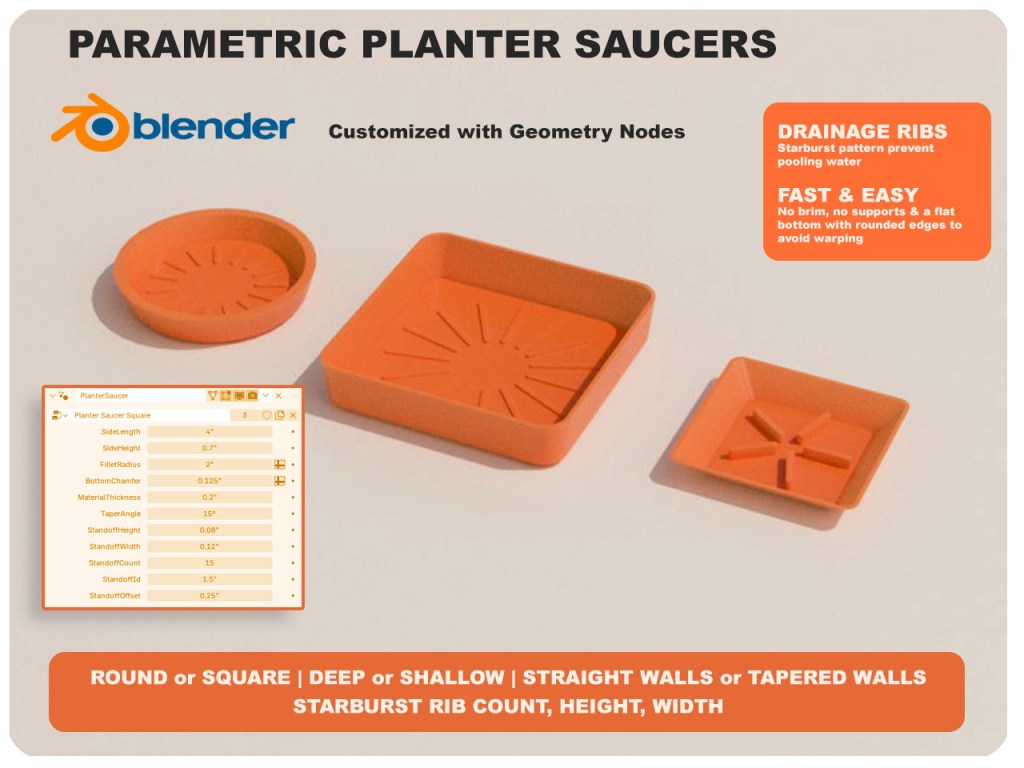
Every plant pot seems to come with a saucer that’s almost the right size — too small, too big, wrong color, or just plain ugly. I got tired of that, so I built one I can resize on demand.

It’s a parametric planter saucer, designed in Blender with Geometry Nodes. Eleven inputs control the shape: side length, height, corner roundness (crank it up and the square becomes a circle), wall taper, material thickness, and the little ribs underneath that lift it off the surface so water can drain out of the pot. Same base file, infinite variations.

Continue reading “Create Custom Planter Saucers with Blender”

New Destination for 3D Models

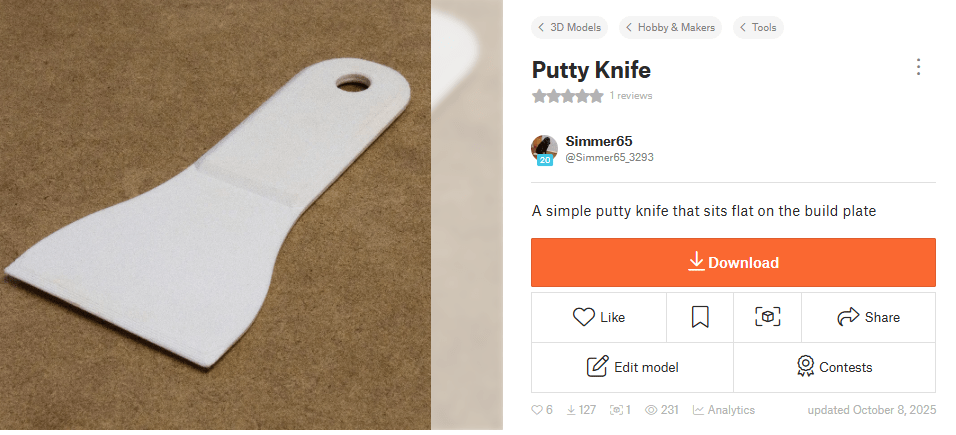
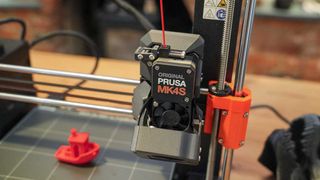
I started posting to Prusa’s Printables. You can trade in reward points for filament, Prusa merchandise or voucher’s for a new 3d printer. If you are very popular, I suppose it is possible to accumulate enough points to earn a new 3D printer.

I currently have 12 models posted and have 130 reward points. A roll of filament is 350 points. A Prusa mini is 10,000 points and a Prusa MK4S is 25,000 points.

I am 0.5% of the way to a MK4S. Every journey starts with a first step.

I plan on using this site to post my models that are designed to be 3d printed. Models that are for rendering will still be posted to CGTrader.

Restoring Solidworks Thumbnails.

During a Windows or Solidworks update, my system lost the ability to show me an icon preview of my Solidworks files. This makes it difficult to find parts and drawings, so I spent some time finding the solution.

Many responses to other Solidwork users experiencing the same problem steered people to folder options check boxes. This didn’t work for me. What I needed was to re-register certain DLL files with the Windows registry.

  1. Load the command prompt window with Administrator rights
  2. Type in these commands:

    regsvr32 “C:\Program Files\Common Files\SOLIDWORKS shared\swdocumentmgr.dll”

    regsvr32 “C:\Program Files\Common Files\SOLIDWORKS shared\sldwinshellextu.dll”

    regsvr32 “C:\Program Files\Common Files\SOLIDWORKS shared\sldthumbnailprovider.dll”

I found a near-solution at GoEngineer, but I had to tweak their instructions a bit because the sldthumbnailprovider.dll file was in a different folder.

(This was the fix for Solidworks 2024 on Windows 11)

Blender Quick Tip: Why my results differ from the tutorial

When following a Blender tutorial, it can be frustrating when the results don’t match what the instructor is showing, despite typing in the exact values. The key to resolving this issue may be checking your units. Most tutorials are created using meters as the unit of measure, but your Blender custom start up may be set to inches or another unit. This discrepancy has tripped me up when working with procedural shaders and geometry nodes.

So the next time you are watching a tutorial, pay attention to the units. This simple step will save you time and frustration, helping you to replicate the tutorial accurately and continue learning effectively.