Blender Quick Tip: Why my results differ from the tutorial

When following a Blender tutorial, it can be frustrating when the results don’t match what the instructor is showing, despite typing in the exact values. The key to resolving this issue may be checking your units. Most tutorials are created using meters as the unit of measure, but your Blender custom start up may be set to inches or another unit. This discrepancy has tripped me up when working with procedural shaders and geometry nodes.

So the next time you are watching a tutorial, pay attention to the units. This simple step will save you time and frustration, helping you to replicate the tutorial accurately and continue learning effectively.

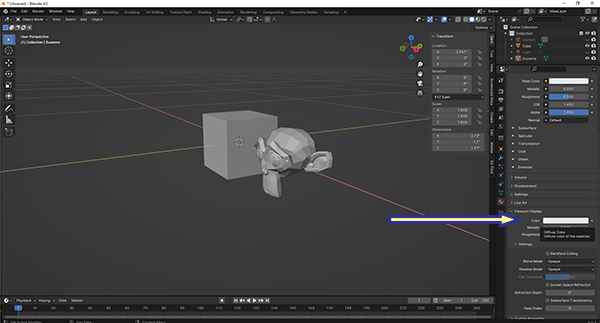
Texture Painting

I was having a hell of a time this morning with Blender. I couldn’t get the Texture Painting to work. I searched online for a solution, but every answer seemed geared to someone just learning.

After struggling and not finding the answer online, I finally figure it out. The object I was trying to paint was in the “Local” mode. The local mode quickly isolates one more objects. It is toggled on and off with the “/” Forward Slash key on the keypad.

I toggled local mode off and texture painting magically worked again.

Blender Quick Tip – Photogrammetry Lighting

Photogrammetry scans already come with their own lighting. When using these scans in Blender, you can get a natural look and speeds up Blender with a few clicks.

shading-blender-photogrammetry

  1. Put the 3D viewport into the solid mode. You can click the solid circle in the upper right corner or hit the “Z” key and then slide your mouse to the right.
  2. Click the shading option arrow next to the shading modes in the upper right corner
  3. The lighting default is “Studio”. Change it to “Flat”
  4. The color default is “Material”. Change it to “Texture”