Export OBJ Files with Textures from Blender 4.x
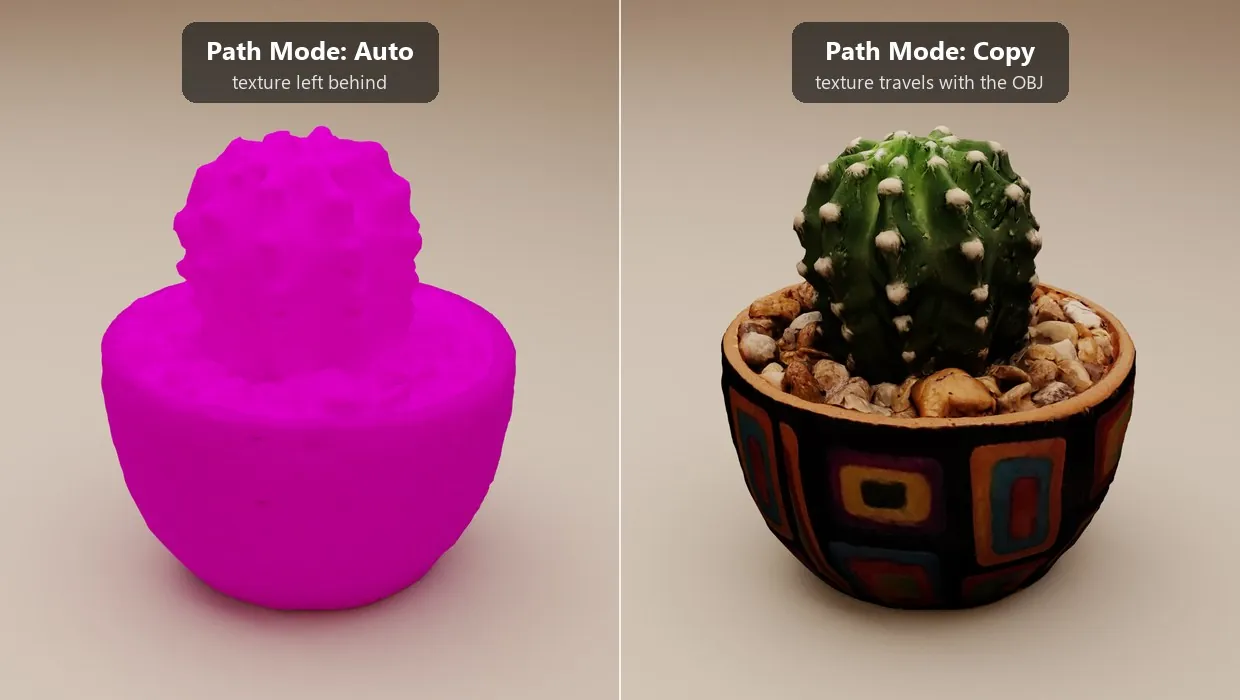
When I started posting models I had made in Blender as OBJ files, people complained that the textures were missing. They were right. The first version of this post, from 2021, blamed it on packing and told you to run Pack All Into .blend before exporting. That was wrong. Packing changes what is stored inside the .blend file, and the OBJ exporter never looks there. The exporter was also rewritten in Blender 3.x, so the checkboxes I named back then no longer exist. Here is what actually goes wrong and the setting that fixes it, tested in Blender 4.5.
An OBJ is three files, not one
There are no pixels inside an OBJ. The export writes three separate things:
- cactus.obj holds the geometry and the UV coordinates.
- cactus.mtl holds the materials. Each material points at its image files by name or by path.
- cactus_diffuse.png, and any other maps, are ordinary image files that the .mtl refers to.
The textures go missing in one of two ways. Either the person only received the .obj, or the .mtl points at a path that exists on your computer and nowhere else. Both are export settings, and neither has anything to do with packing.
The setting: Path Mode set to Copy
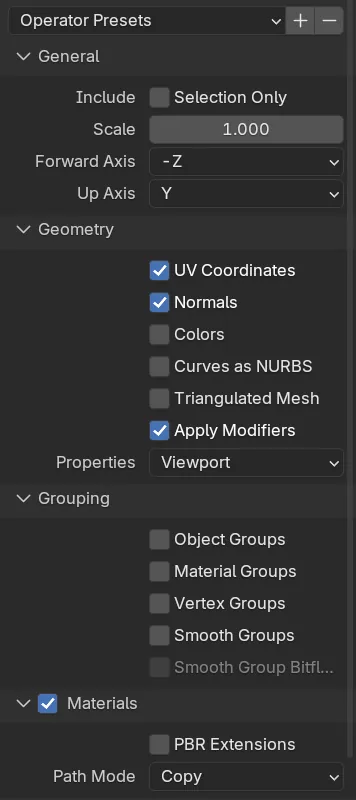
- File, Export, Wavefront (.obj).
- In the options on the right, make sure the Materials panel is checked. It is on by default. Unchecking it skips the .mtl file entirely.
- Set Path Mode to Copy.
- Export into an empty folder.
The folder now holds the .obj, the .mtl and a copy of every image the materials use, side by side. The .mtl refers to them by file name only, so the set works wherever it is moved to. Zip the whole folder and that is what you upload.
This is what the .mtl looks like after a Copy export. The last line is the one that matters:
newmtl Cactus
Ns 250.000000
Ka 1.000000 1.000000 1.000000
Ks 0.500000 0.500000 0.500000
Ke 0.000000 0.000000 0.000000
Ni 1.500000
d 1.000000
illum 2
map_Kd cactus_diffuse.png
What the other Path Modes do
The default is Auto, which is why so many uploads arrive without textures. Here is what each choice writes into the .mtl, from my own exports:
| Path Mode | What the .mtl says | Result for the person who downloads it |
|---|---|---|
| Auto (default) | A relative path if the image sits in a subfolder of the export folder, otherwise the full path on your drive | Works only if you happened to keep the textures under the export folder. Otherwise it points at C:\Users\you\... and fails. |
| Absolute | The full path on your drive | Fails on every other computer. |
| Relative | A path relative to the .obj, such as ../textures/cactus_diffuse.png | Works until the .obj is moved or zipped without the folder next to it. |
| Match | Whatever the image path was set to in Blender | Same problems as above, depending on the file. |
| Strip | The file name only, but no file is copied | The .mtl looks correct and the texture is not there. This is the trap. |
| Copy | The file name only, and the image is copied next to the .obj | Works. |
Three setups that still drop the texture
Copy fixes the path problem. These three things stop the exporter from writing the texture at all, and none of them give an error in the dialog.
1. The image is packed into the .blend. This is the opposite of what my old post said. When an image is packed, the exporter still writes the map_Kd line, but it cannot copy the file. The only sign is a line in the system console reading "Missing source file, not copying". An image that only exists inside the .blend, such as one you created and painted in Blender and never saved, is left out of the .mtl completely. Before exporting, use File, External Data, Unpack Resources, or save the image to disk from the Image Editor with Image, Save As.
2. The texture is not wired straight into the Principled BSDF. The exporter follows the Base Color input back to an Image Texture node. If it finds a Mix, a Color Ramp, a Hue Saturation node or anything else in between, it writes no map at all. Plug the image directly into Base Color for the export, or bake the result to a new image first.
3. The material has no Principled BSDF. An Emission shader, a Diffuse BSDF or a node group of your own exports as a plain colour with no maps. The tooltip on the Materials checkbox says as much.
What gets exported
With Materials on and PBR Extensions off, the exporter writes the Base Color image as map_Kd, a Roughness image as map_Ns, and a Normal Map node's image as map_Bump. Turn on PBR Extensions and roughness becomes map_Pr and metallic becomes map_Pm, which newer importers, including Blender's own, understand and older ones ignore. In practice most programs read map_Kd and nothing else, so for a model that has to look right everywhere, bake everything you care about into the diffuse map.
The format cannot carry a node setup or a procedural texture. If the surface comes from noise, gradients or maths nodes, bake it to an image, plug that image into Base Color and export that. The OBJ will never look exactly like your Blender render, and that is a limit of the format, not a setting.
Check it before you upload
Open the .mtl in Notepad. Every map line should be a bare file name, and each of those files should be sitting next to it. Then start a fresh Blender, import the OBJ from the zipped copy, not from the folder you exported into, and switch the viewport to Material Preview. If the texture shows there, it will show for the person who downloads it.
The cactus in the file names is a potted cactus I built from a photogrammetry scan in Zephyr, the model that started this whole complaint. If a model comes straight out of Zephyr and you have not changed it in Blender, export the OBJ from Zephyr instead. It writes the .obj, the .mtl and the texture together in one step, and the Blender step is one less place for the texture to fall off.